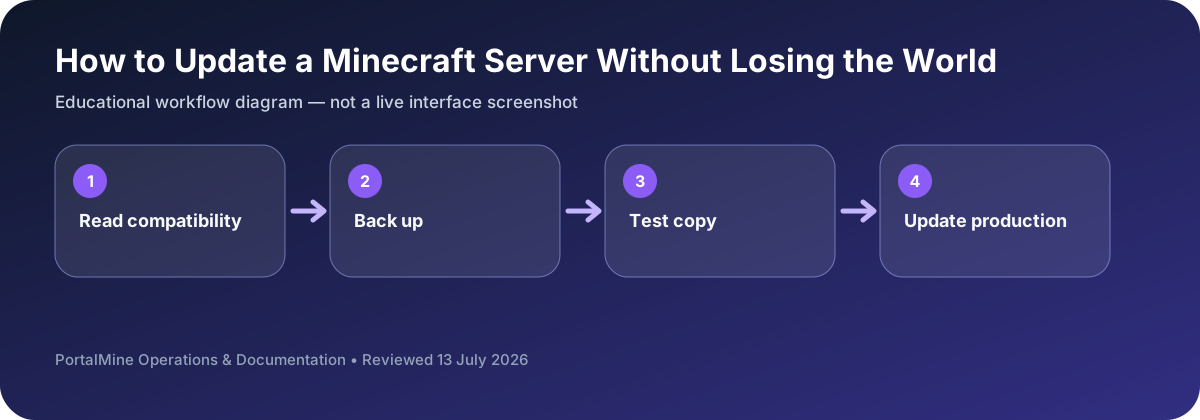
This is an educational workflow diagram based on PortalMine’s documented interface and common Minecraft administration steps; it is not a live dashboard screenshot.
1) Why updates break servers
Version mismatches and plugin incompatibility cause most issues.
2) Safe update workflow
Backup → test → update → verify.
Separate the update into decisions
An update can change Minecraft itself, the server software, plugins, mods, configuration formats, or all of them. Treat these as separate changes whenever possible. Confirm that required plugins or mods support the target version before changing the live server.
Create a labelled backup, save the current file list, and write down the rollback point. Start the updated server without players first, review the log, join, visit important locations, test permissions, and restart once more. Only then announce that normal play can resume.
Communicate a maintenance window
Tell players when the server will be unavailable, what is changing, and where problems should be reported. A short maintenance message reduces repeated support questions and prevents players from joining during a risky migration.
Decision table
| Area | What to check | Why it matters |
|---|---|---|
| Preparation | Read compatibility notes and record current versions | Prevents unsupported combinations. |
| Protection | Create and download a labelled backup | Creates a clear rollback point. |
| Testing | Start privately, inspect logs, join, restart | Finds startup and persistence problems. |
| Release | Open to players and monitor reports | Confirms behavior under normal load. |
Questions server owners ask
Should I update on release day?
Only when the update is needed and the required ecosystem is ready. Waiting can be safer for plugin or modded servers.
What if the server starts with warnings?
Read and resolve relevant compatibility warnings before inviting players.
How do I roll back?
Restore the labelled pre-update backup and the matching software/plugin/mod versions.